

Alternatives
A Mapimator alternative: an AI agent that drafts the video, and a full timeline to finish it
As a Mapimator alternative, Maptake also takes a described journey or a script to an AI, but leaves a layered project you edit on a timeline and exports the map for your own edit. Choose Mapimator if you need a GIF, or a check that marks each line of a timed script as on time, late or skipped.
Watch how “The Strait of Hormuz” was built
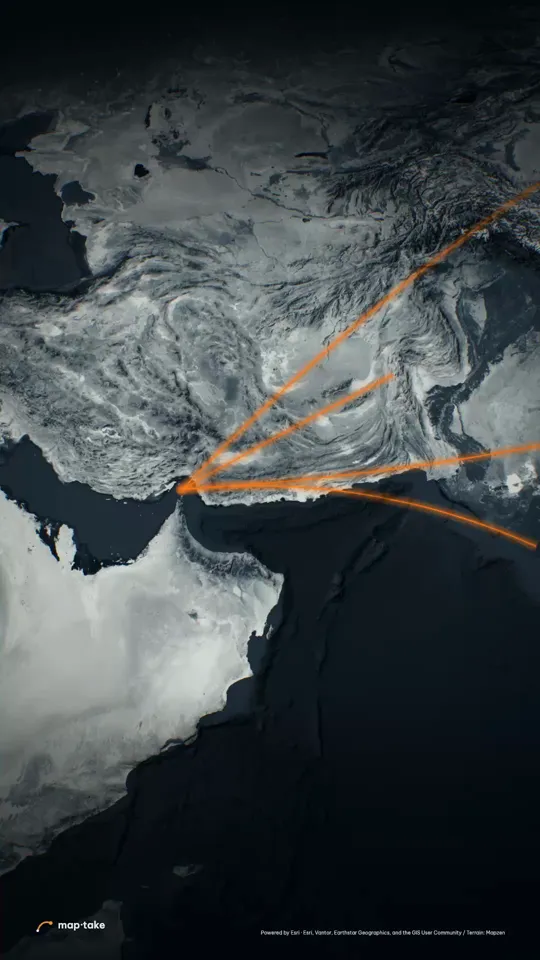
How do I make a news map video with AI, then edit it?
Describe the video in the chat, and the agent plans it and builds it on the timeline in the browser. Every layer it adds stays editable, so the draft is where you start, not where you stop.
- 30 s
- vertical 9:16 news explainer
- 7
- scenes, each with its own camera move
- 23
- words in the request
- 6
- labels placed on the map
This is the request this example was planned from:
“30s video about the Strait of Hormuz. Make people feel why the whole world holds its breath when ships pass here. Cinematic, tense.”
It names the subject, the length, the feeling and the look. It does not name a single route or camera move: the plan chose them.
The agent works in this order, the same as in the app’s chat:
- Plan. It writes the story, the feeling and the camera shots. Here: dread over one light crawling across dark water, a leap into space where the whole Earth opens, then the lines go dark one by one.
- Places and data. It finds the strait and its coast, and the four places the oil goes: China, India, Japan and South Korea. The ship lines inside the strait are illustrative, drawn by hand on water, not taken from shipping lane data.
- Look. It picks one design system, Cold Steel: one ember line on a colourless Earth, the only warm thing in the frame.
- Scenes, one by one. It builds each scene on the timeline: the lines, six short pieces of text and the camera shots, such as the slam up to the whole neck of the strait.
- Review. It checks frames of the result against the plan and corrects what does not match.
- Done. You get an ordinary project. This one has 8 camera shots, 6 labels and 11 lines.
Then you edit by hand:
- Retime a camera shot or change its easing.
- Retype a label, such as “1 IN 5”, or move a line.
- Add your own voiceover or music on the timeline.
This example was planned by one AI model and built by another with the editor’s own tools, not by the agent inside the app. The in-app agent works with the same tools.
What did one request turn into, scene by scene?
The plan gave every scene a feeling and a camera speed before anything was built. The ribbon shows that speed across the video, and the frames below are the real result: slow glides carry the dread, and two slams carry the camera up to the whole neck of the strait and back down to the coast.
- glide
- slam
- reveal
- taller bar = faster camera
-
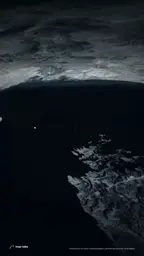 0:00 Low over the Musandam coast glide · slow
-
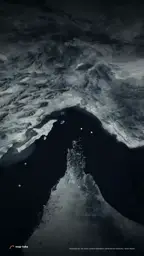 0:14 Slam up to the whole neck slam · very fast
-
 0:16 Lights squeeze through glide · slow
-
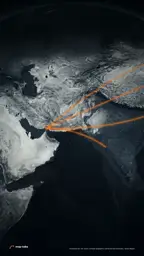 0:29 Up to the globe reveal · fast, then very slow
-
 0:50 The globe turns, arcs retract glide · very slow
-
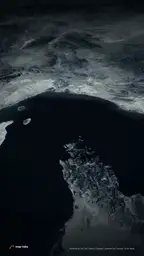 1:04 Slam back down to the coast slam · very fast
-
 1:07 One light, held to the end glide · very slow
Frames and speeds come from the example project and its camera plan. Swipe the row on a phone.
Is the result a flat video, or a project you can edit?
The MP4 is only the export. Underneath is a normal project, and the agent made it with the editor’s own tools, so every camera shot, label and line is a layer on the timeline, drawn here from the project itself.
Camera one tile per scene
Labels place names, numbers, photo credits
Routes each leg appears when the road reaches it
Because they are ordinary layers, you fix an agent’s draft the same way you would fix your own: retime a shot, retype a label, move a line. Mapimator’s help says the same of its AI Director: what it makes is a normal slide or map element. The difference is the editor you then work in, compared in the table below.
Which one should you choose?
Choose by the job. Mapimator is built around slides and a timed script report. Maptake is built around a layered timeline and handing the map to your own editor.
| Choose Mapimator if… | Choose Maptake if… |
|---|---|
| You need a GIF. Mapimator exports MP4 or GIF; Maptake exports MP4 or WebM. | You want to change every layer by hand after the draft: camera shots with keyframes and a graph editor, labels, routes and areas. |
| You want a report on a timed voiceover script: its AI Director marks each timed line “On time”, “On time with a cut”, “Late” or “Skipped”. | You want to bring the map into your own edit: a CapCut pack with one MP4 per camera shot, or an After Effects pack on Pro. |
| You like to build by slides: each slide is a saved camera position with a duration and an easing, and its home page offers 32 ready-made starters. | You want the same project to hold satellite, 3D terrain, cut shapes for front lines and your own CSV or TSV tables joined to boundaries. |
| You work with a team: its Agency plan lists 5 seats and a shared workspace. | You want an AI allowance that renews: 100 AI credits a month on the free plan, where Mapimator’s free plan has 3 AI Director credits once. |
How do Mapimator and Maptake compare at a glance?
Checked 20 November 2026. Sources are listed at the end of the page. Maptake wrote this page and is one of the two tools in it. “Not mentioned” means the pages we read do not mention it, not that the feature is missing.
| Mapimator | Maptake | |
|---|---|---|
| Runs in | Your browser. No plugin needed | Your browser |
| AI | AI Director: describe a journey, or paste a script with timestamps | AI agent in the chat: describe the video or paste a script or a shot list as plain text |
| What the AI result is | Normal slides and map elements, edited the usual way; “Retake Slide” reframes one | A layered project: camera shots, labels, lines and areas on the timeline |
| Editing by hand | Slides with a duration and easing for each move, five camera moves, and a Timeline view with a bar per element. Keyframes are not described in its help pages | Timeline with camera shots, keyframes and a graph editor for easing, plus per-layer timing and style |
| Your own data (import) | Pins from GeoJSON or CSV, routes from GeoJSON, GPX or KML, regions from GeoJSON; imports need a paid plan. TCX not mentioned | GeoJSON, GPX, KML and TCX as lines and areas; CSV or TSV tables join to boundaries |
| Export formats and sizes | MP4 or GIF in 16:9, 9:16 and 1:1; 720p, 1080p, 4K and 30 or 60 fps on paid plans; GIF up to 1080p and 30 fps | MP4 or WebM in 9:16, 4:5, 1:1, 16:9 or a custom size. Pro and Studio 3840 px (4K); videos up to 3 minutes on Pro and 10 minutes on Studio |
| Exports for another editor | None mentioned on the help pages read | CapCut pack (one MP4 per camera shot, optional labels on green) and After Effects pack on Pro |
| Audio | No sound feature described on the help pages read; the AI Director does not read a script aloud | Upload music, voiceover or sound effects, or record a voiceover in the editor. Audio in exports: Free No, Pro Yes |
| Free plan | 3 projects, 1 export a month, 480p at 30 fps, a small mapimator.com watermark, 3 AI Director credits once | 5 projects, 100 AI credits a month, 1280 px, 10 seconds, watermark |
| Allowed use | Commercial use is listed for Pro (monetized YouTube, social, client work); a TV and broadcast license on Enterprise. Not listed for Free | Free: personal, non-commercial. Pro: your own channels and business. Studio: also videos for clients |
| Map data and attribution | No map data provider named on the pages read | Included in every plan. Map data credits are shown in the video, plus a line to paste into your description |
Can I paste my script or a shot list with times?
Yes in both, with a different follow-up. Mapimator’s help page says its AI Director reads a voiceover script with one moment per line, such as “00:12 Highlight Iran in red”, then lists each moment as on time, late or skipped. It does not read the script aloud, and spoken sentences do not become captions.
In Maptake the request is plain text, so you paste your script or a timed shot list into the chat and the agent plans the scenes from it. Keep a single message under 4,000 characters. We do not promise frame-accurate sync: play the preview, then retime a shot on the timeline until a line lands where you want it. If you record your own voiceover, add it as audio on the timeline; you can upload a file or record from your microphone in the editor.
Can I use the map as one part of my own video?
That is the job Maptake is shaped for: a map sequence you finish by hand, then cut into a video you edit elsewhere.
- One video. MP4 or WebM, sized for 9:16, 4:5, 1:1 or 16:9, or a custom size.
- CapCut pack. One MP4 per camera shot, numbered in order. You can add a second set that holds only the labels on a green background, then remove the green with Chroma key in CapCut and restyle the text.
- After Effects pack, on Pro and Studio. Each scene’s map as an MP4 or a PNG sequence, the labels as a transparent PNG sequence, and a script that builds the comps.
- Plugin, in closed beta. A free plugin puts a Maptake map in your composition as a live layer. See Maptake for After Effects.
The Mapimator help pages we read describe MP4 or GIF export and no separate-layer pack. The free plan of Maptake exports up to 10 seconds with no audio, so a long cut or a soundtrack needs Pro. See pricing for the limits of each plan.
How do I move a project over?
Maptake cannot open Mapimator projects, so you rebuild. It takes a few steps:
- Export your routes and shapes from wherever you made them, as GeoJSON, GPX, KML or TCX.
- In Maptake choose “Feature”, then “Import a file”, in the Add dock, or describe the video to the agent again and paste your script.
- Rebuild the look and set the camera shots on the timeline.
Sources
- Mapimator: home page
- Mapimator: plans and limits
- Mapimator help: build a map animation with the AI Director
- Mapimator help: export a map animation as a video
- Mapimator help: studio interface overview
- Mapimator help: import GeoJSON
- Mapimator help: import a GPX file
- Mapimator: help center
Maptake’s own limits: pricing and plan limits.
Questions people ask
- Is Maptake affiliated with Mapimator?
- No. Maptake is independent and is not affiliated with or endorsed by Mapimator.
- Can AI make a map video from a script with timestamps?
- Mapimator’s AI Director takes a script with timestamps and lists each line as on time, late or skipped. In Maptake the request is plain text, so you can paste a script or a timed shot list and the agent plans the scenes from it. It does not promise frame-accurate sync, so you check the preview and retime a shot on the timeline.
- Can I edit what the AI made?
- Yes. The agent uses the editor’s own tools, so every route, label, boundary and camera shot is a normal layer on the timeline. Retime a shot, retype a label or change the look by hand. Mapimator’s help says its Director output is also normal slides and map elements.
- Can Maptake export a GIF?
- No. A single video exports as MP4 or WebM, and Mapimator’s export dialog offers MP4 or GIF. If you need a GIF, Mapimator is the better fit, or convert the MP4 in another tool.
- Can I use the map as one part of a video I edit myself?
- Yes. Export an MP4, or use the CapCut pack for one MP4 per camera shot, numbered in order, with an optional second set holding only the labels on a green background. The After Effects pack on Pro adds the map and labels as separate layers and a script that builds the comps.
- Can I import a Mapimator project?
- No. Maptake cannot open Mapimator projects. Import your routes and shapes as GeoJSON, GPX, KML or TCX files, or describe the video to the agent again.
- Is there a free plan?
- Yes. The free plan has 100 AI credits a month and exports up to 1280 px and 10 seconds, with a watermark, for personal use. Mapimator’s free plan lists 3 projects, 1 export a month at 480p at 30 fps and a watermark.
Try Maptake on your own script
Open the editor free, describe one scene or paste a few lines of your script, and fine-tune what the agent drafts. The free plan needs no card.
Related
Map data © OpenStreetMap contributors, Natural Earth. Tiles © Protomaps. Satellite imagery: Esri.
Mapimator is a trademark of its owner. Maptake is not affiliated with or endorsed by it.