

How-to
How to make a globe animation with AI, then fine-tune it by hand
A globe animation needs a 3D globe projection, a keyframed camera and a backdrop of atmosphere and stars. With Maptake’s AI agent you describe the video; it plans the shots, picks a look, places the places and arcs and sets the camera moves. You then fine-tune the spin or the zoom from space on the timeline before exporting.
Watch how “The Strait of Hormuz” was built
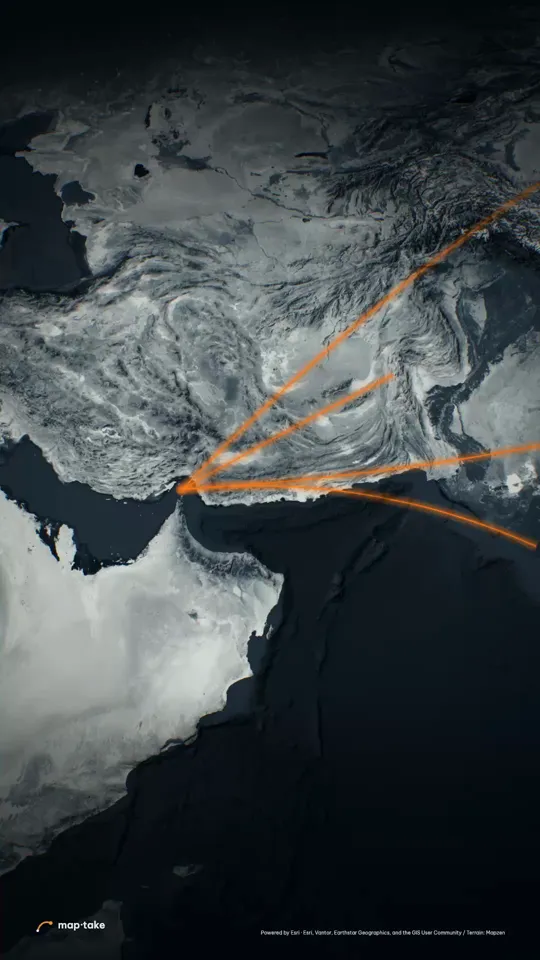
In the clip above, the camera leaps off the Strait of Hormuz into space and lines shoot out to China, India, Japan and South Korea. In the full video that is 9.5 to 16 s, the first 6.5 s of this cut.
How do I make a globe animation with AI?
Describe the video you want, and say what the viewer should feel. The agent decides where a globe shot belongs, sets it up and builds the camera moves on the timeline.
This is the request this example was planned from:
“30s video about the Strait of Hormuz. Make people feel why the whole world holds its breath when ships pass here. Cinematic, tense.”
The request never mentions a globe. The plan chose it: the wow moment is the camera leaping up off the strait into space, with lines shooting out to China, India, Japan and South Korea. That is the clip above.
The agent works in this order, the same as in the app’s chat:
- Plan. It writes the story, the feeling and the camera shots. Here the feeling was a single tiny light on a dark sea, and the wow was the pull back to the whole planet.
- Places and data. It finds the strait and the four countries the lines run to.
- Look. It picks one design system: a colourless steel Earth with a soft halo, and one ember line as the only warm thing in the frame.
- Scenes, one by one. It builds the low coastal opening, the slam up to the strait, the globe with its arcs and the dive back down.
- Review. It checks frames of the result against the plan and corrects what does not match.
- Done. You get an ordinary project. This one has 8 camera shots, 6 labels and 11 lines.
Then you edit by hand:
- Retime the dive or change its easing.
- Move, add or remove an arc, and retype a label.
- Change the projection or the look.
This example was planned by one AI model and built by another with the editor’s own tools, not by the agent inside the app. The in-app agent works with the same tools. The ship lines in the strait are illustrative: they are drawn by hand on water, not from shipping-lane data.
What are the three globe shots, and when do I use each?
Three camera moves cover almost every globe animation: a slow spin, a zoom from space to a place, and a pull back from a place to the whole Earth.
- Slow spin. The Earth turns with nothing on it yet. Use it as a calm opening or to establish where the story is.
- Zoom from space to a place. The familiar “earth zoom”. Use it to arrive somewhere: start with the whole Earth, ease in, end on a street.
- Pull back from a place to the whole Earth. Use it to show scale. The Hormuz video does this: a narrow strait, then the planet it supplies.
Add arcs between places on the globe when the story is about connections: trade routes, flights, cables.
How do I make an earth zoom from space to a city?
This two-minute tutorial makes one from an empty project: the Earth turns slowly in space, the camera dives to Manhattan in a single move, and a label lands on the island.
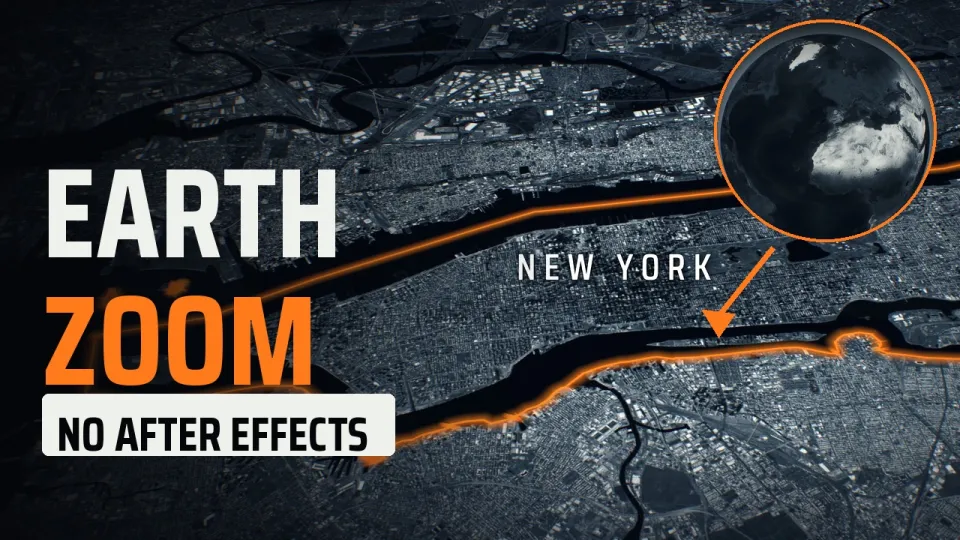
This is the request typed into the agent’s chat in the video:
“Earth zoom into New York: start in space with the globe slowly turning, then dive straight down to Manhattan and end on a label. 10 seconds, 16:9, cinematic.”
The agent builds the camera in three moves: the globe turns for 4 seconds, the camera dives for 3.5 seconds, and it settles over the city for 2.5 seconds. It outlines Manhattan and places a label. Then three things are changed by hand:
- The label. Retype it as “New York” and make it bigger.
- The dive. Set “Peak speed” to 75 %, so the camera keeps accelerating longer and brakes hard over the city.
- The landing. Add “Orbit Around” to the last shot, so the camera keeps turning while the label reads.
The project opens as a copy in the editor. Change the city, the label or the speed of the dive, and export your own version.
In the video:
- 0:00 The Earth zoom
- 0:17 Describe the shot to the agent
- 0:27 The agent builds it (sped up)
- 0:48 Everything lands on the timeline: change the label
- 1:08 Make it yours: the dive (peak speed)
- 1:23 Make it yours: orbit at the end
- 1:33 Export: MP4, CapCut pack, After Effects pack
- 2:01 The result
The agent step is sped up in the video; a take like this usually runs three to five minutes. The video was recorded on a development build, where another AI model answered in place of the one inside the app, through the same steps and tools. The look uses satellite imagery, which exports on Pro; a vector map style exports on every plan, and the globe and the dive work the same way. The narration is an AI voice.
How do I fine-tune a globe animation by hand?
Open the project and work on the timeline. To build a globe shot from nothing, without the agent, follow the same steps:
- Set the projection. Open “Video settings” in the header, go to the Properties tab, find the Video section and set “Projection” to “Globe (when zoomed out)”.
- Turn on atmosphere and stars in the World layer. They only work with the Globe projection.
- Set two camera shots in the Camera layer: the first wide with the whole Earth in frame, the second close on your place. Use an ease-in-out curve.
- Keep going down. The globe flattens into a normal map between zoom 7 and zoom 9, so one move can run from space to street level. For a street view, keep the second shot’s zoom high.
- Add arcs, areas and labels. Draw routes as great-circle lines and animate “Trim end” to draw them across the globe.
- Export. Open “Export video”. A vector globe exports on every plan. Satellite imagery and 3D terrain need Pro.
Open the Hormuz project in the editor to see the globe shot as a set of camera shots.
How should the camera move on a globe?
Match the speed to the feeling. A slow, heavy spin reads as dread or awe. A fast dive with a zoom blur on arrival reads as energy. Whatever the move, hold still when you land.
The Hormuz score shows all three. From 9.5 to 16 s the camera leaps to the globe, fast at first and then very slowly, while the arcs draw one after another. From 16 to 20.5 s the globe turns very slowly, about 6 degrees of bearing over the whole stretch, while the arcs retract. From 20.5 to 21.5 s the camera slams from space back down to the coast, with a zoom blur on arrival. Then it settles into a very slow glide until the end.
The slow part is what makes the fast part land. A dive with nothing before it is only a transition.
What are the other ways to make a globe animation?
Maptake is one route. These are the others, and what each is good for.
- After Effects. A map plugin such as GEOlayers, or a textured sphere effect. Full control, with a plugin to buy and a steeper learning curve.
- Google Earth Studio. Free and photoreal, and it exports image frames. It needs on-screen attribution and is built for flyovers, not for drawing routes and labels. Earth Studio compared with a map editor.
- AI video apps with an “earth zoom” effect. Fast and pretty. General models tend to misspell labels and invent borders, so use them for a mood shot, not for a map people will check.
Questions people ask
- Can AI make a globe animation?
- Yes. Describe the video and the agent plans the shots, sets the globe and builds the camera moves on the timeline. You can also ask for a shot by name: a slow spin, a zoom from space or a pull back to the whole Earth. Check the labels and borders, and retime any shot by hand. Generic AI video apps can fake an “earth zoom” too, but they tend to misspell labels and invent borders.
- Can I make a spinning globe loop?
- You turn the globe by changing the camera’s centre between shots. For a loop, make the last shot match the first and check the join on the timeline. A slow spin is also fine as a one-way establishing shot.
- Can I zoom from space to a street?
- Yes. The globe blends into a flat map between zoom 7 and zoom 9, so a single camera move can run from the whole Earth down to street level.
- Can I export it with a transparent background?
- Not a single video: MP4 and WebM exports have no alpha channel. The After Effects pack, on Pro, exports the map and the labels as separate layers, with the labels as a transparent PNG sequence, so you can composite them yourself.
- Is it free?
- A vector globe exports on every plan. The free plan exports up to 1280 px and 10 seconds, with a watermark. Pro goes up to 3840 px (4K) and 3 minutes.
- Can I edit what the AI made?
- Yes. The agent uses the editor’s own tools, so the projection, the camera shots, the arcs and the labels are normal layers and settings. Change the projection, retime a dive or move an arc by hand.
- Can I show real satellite imagery on the globe?
- Yes, on Pro. Satellite imagery and 3D terrain show in the preview on every plan, but exporting them needs Pro.
Try the globe shot
Open the editor free, describe a globe shot to the agent and fine-tune the camera. The free plan needs no card.
Related
Map data © OpenStreetMap contributors, Natural Earth. Tiles © Protomaps. Satellite imagery: Esri.